
Because the FLEX-RANGE combines cellular and satellite connectivity, it operates differently from other cellular trail cameras. Discover how to customize your settings in the SPYPOINT app to maximize your Satellite plan.
Before adjusting your camera settings
Keep these 3 key points in mind before adjusting your settings:
1: Your camera must connect to a cellular network for its initial setup. Configure and test it in a cellular zone before deploying it in a satellite zone.
2: The SPYPOINT app requires a connection to a cellular network or Wi-Fi to change any setting.
3: You need to buy a Satellite plan to use satellite connectivity.
Learn to adjust the different satellite settings
When cellular coverage is unavailable, the FLEX-RANGE automatically switches to satellite connectivity.
Satellite transmission is ON by default on a FLEX-RANGE camera
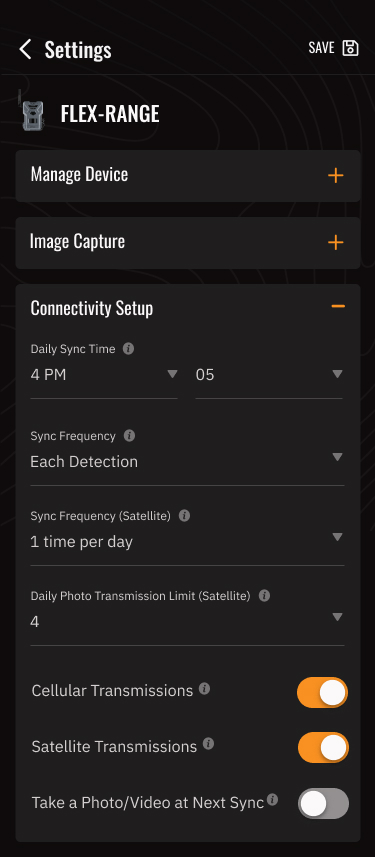
Keeping the satellite connection toggled ON ensures your FLEX-RANGE camera can automatically switch to satellite transmission whenever cellular network coverage is weak or unavailable.
Pro Tip: be aware that if you Toggle OFF the Satellite connection, the camera will only transmit data when a cellular connection is available. Switching back to satellite operation can take up to 48 hours (or you can speed up the process by powering the device off and on).
Manage your sync frequency
Set the number of scheduled syncs performed via satellite within a 24-hour period.
Six synchronizations are scheduled each day by default. You can change the number of synchronizations in your settings by selecting between one, two, four or six.
You can also select your preferred sync time.
Pro Tip: Please note that any setting changes will be applied after the camera’s next scheduled sync.
Manage your photo transmission limit in satellite mode
In satellite mode, photos are transmitted during scheduled syncs to help you manage your monthly 250 photo allowance and battery life.
Default settings: 6 syncs per day / 4 photos per sync (up to 24 photos per day).
Tips to optimize your settings:
- To maximize quota and battery: Reduce syncs to 2 times per day with 4 photos per sync (up to 8 photos/day, or ~240 photos/month). Fewer transmissions conserve battery and space your quota evenly across the month.
- To avoid reaching your limit too fast: If you keep a high sync frequency (e.g., 6 times per day), avoid setting photo limits to the maximum (up to 20 photos per sync) in high-traffic spots.
- Built-in Smart Send AI: You don’t have to worry about wind or empty shots burning through your quota. Smart Send AI is automatically enabled in Satellite Mode to filter out unwanted captures so every transmission counts (read below).
Understanding your monthly photo limit
Once your monthly quota of 250 satellite photos is reached, photo transmissions pause until your next billing cycle begins. There is currently no option to top up photos or reset the counter mid-cycle.
Important: Satellite technology relies on limited global network capacity with strict carrier protocols. These data caps are enforced directly by the satellite provider, meaning our Customer Support team cannot manually increase your photo limit or add a new Satellite plan to your account. Any attempt to bypass this limit or force additional transmissions would result in the provider blocking the camera’s SIM card, cutting off all satellite connectivity.
To keep receiving photos throughout the entire month, we strongly recommend adjusting your sync frequency and letting Smart Send AI filter non-essential captures early in your billing cycle.
What is Smart Send AI and how does it help you optimize your transmissions?
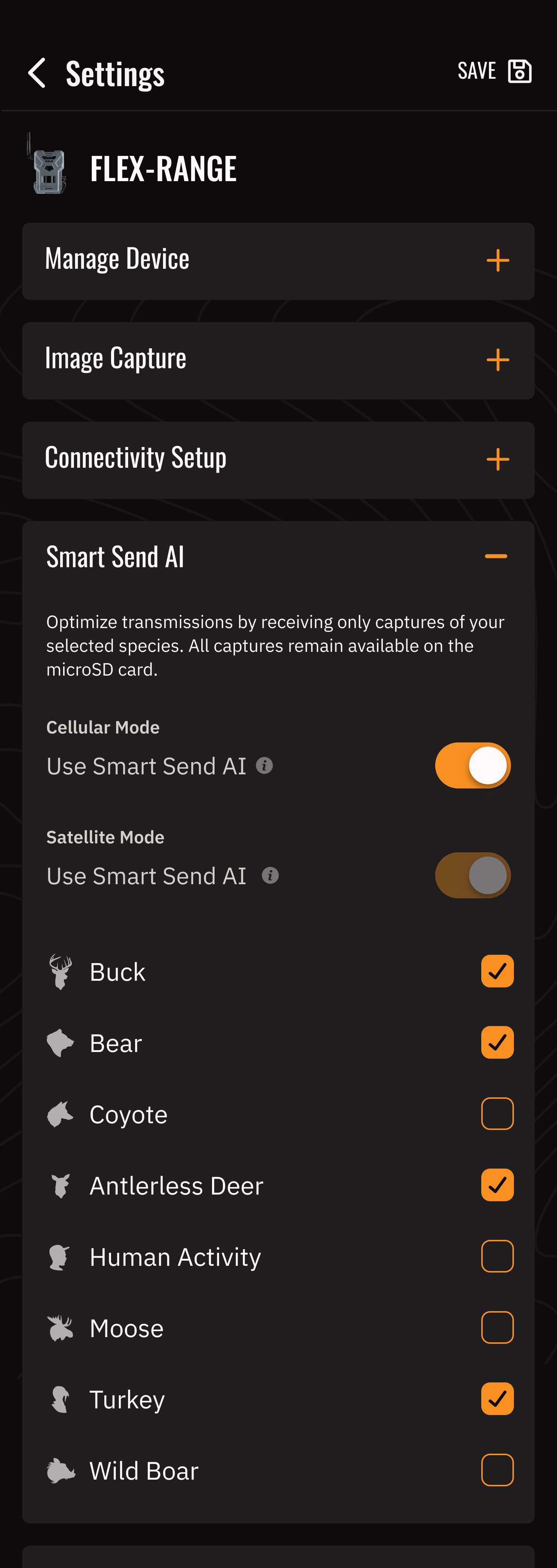
Smart Send AI is SPYPOINT’s newest intelligent filtering feature, designed to make sure every transmission counts. Instead of transmitting every triggered photo, on-camera AI analyzes each capture and transmits the animal species categories you select directly to your app, helping to preserve your monthly photo allowance and battery life.
Important: If no selected wildlife is detected during a sync period, no photos will be sent to your app. Rest assured, your camera is functioning normally, and all captures remain saved locally on your microSD card.
-
Targeted species selection:
- Choose one or more wildlife species you want to monitor in the app (Buck, Antlerless deer, Bear, Moose, Coyote, Turkey, Wild boar, Human activity)
- Captures that do not match your selected species categories are saved to the microSD card but not transmitted to the app, so they will not count towards your transmission quota.
-
Cellular vs. Satellite Operation:
- Satellite Mode (always enabled): Smart Send AI is enabled by default and always active to maximize satellite data efficiency and protect your monthly satellite photo allowance.
- Cellular Mode (customizable): Smart Send AI is optional with a Premium transmission plan. When in cellular mode, you can toggle Smart Send AI ON or OFF based on your scouting needs. When toggled ON (requires at least one species selected), filtering applies across all cellular capture modes—including Motion Detection, On-Demand captures, the physical Test button, Time-Lapse, and Multishot.
Features NOT available in satellite mode
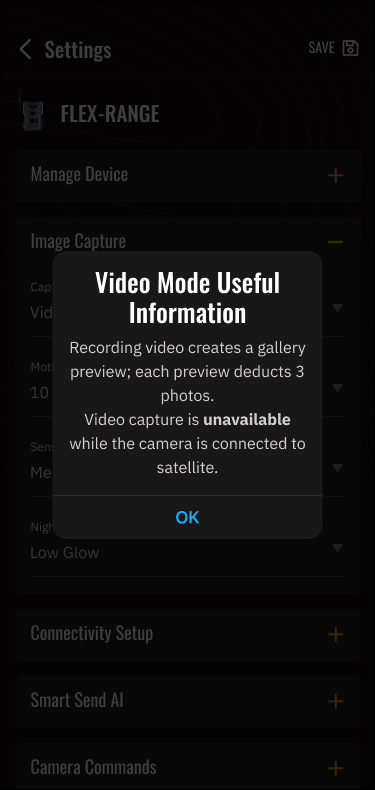
Please note that the following camera actions and remote management tools are only available when your FLEX-RANGE camera is connected to a cellular network:
- Instant Mode: On-demand photo or video requests.
- FULL-HD photo requests: On-demand high-resolution photo downloads.
- Video capture and transmission: Transmitting recorded video clips.
- Remote status refresh: Instant manual refresh of camera diagnostics.
- Firmware Updates: Over-the-air firmware upgrades.
- Remote SD card formatting: Formatting the microSD card remotely
- Remote GPS updates: Updating location coordinates remotely.
Where can you monitor your Satellite plan usage?
You can monitor your plan usage two easy ways:
1. Find your FLEX-RANGE on the camera list in your app. Look for the satellite icon and you will see a number that represents the number of satellite photos taken that month.
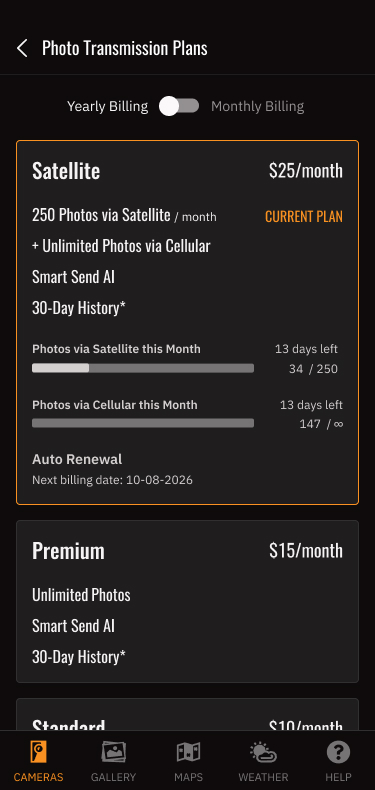
2. Find your FLEX-RANGE on the camera list in your app. Click the three dots in the right-hand corner and select the Plans tab. You will then see information for your Satellite plan and tracking meters for Photos via Satellite this Month and Photos via Cellular this Month.
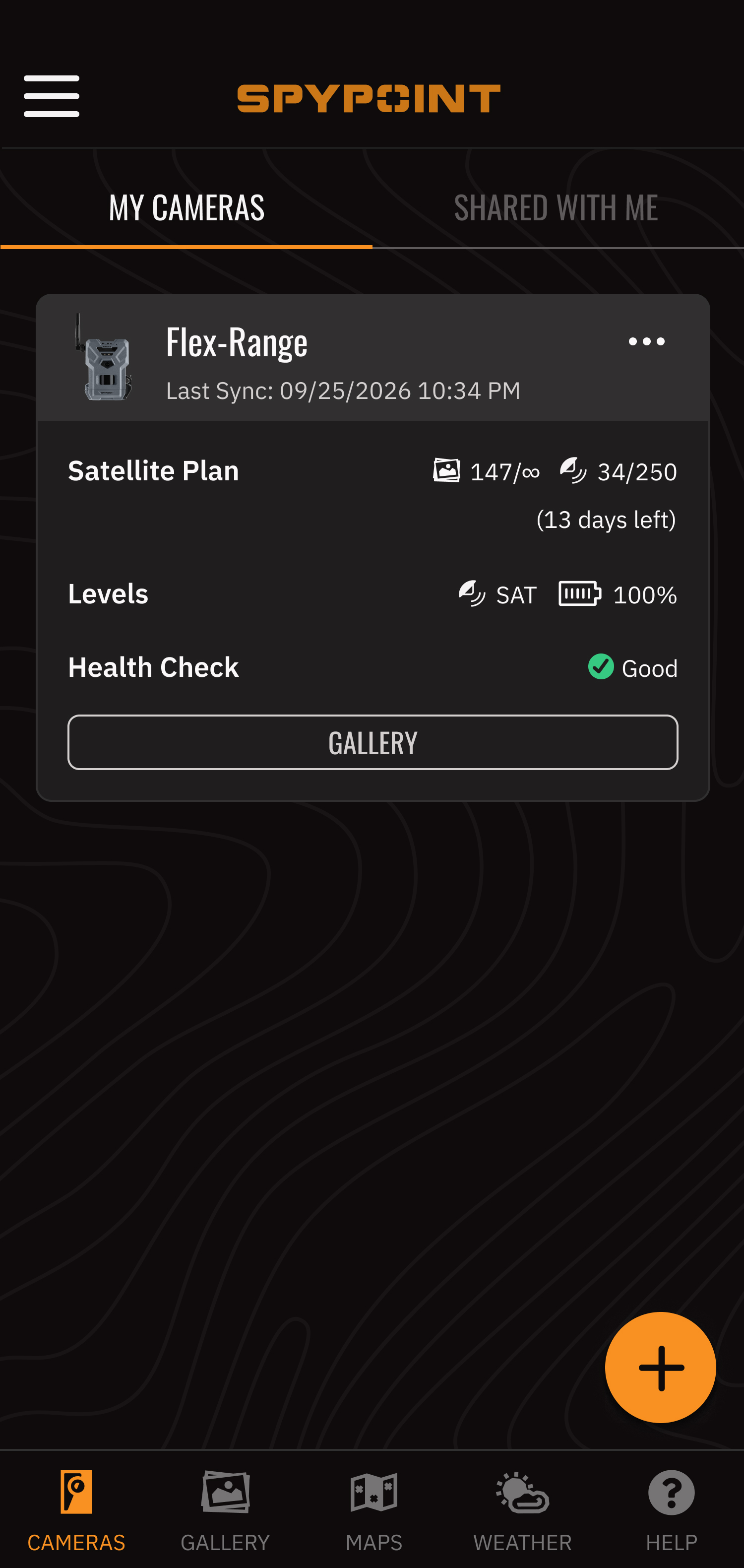
These methods help you to evaluate your data usage and adjust your satellite settings if you want to avoid running out of satellite photos before the end of the month.


